 createbooth
Internet, available AI credits and a configured event. AI can be offered in a free event; its 20-capture limit still applies.
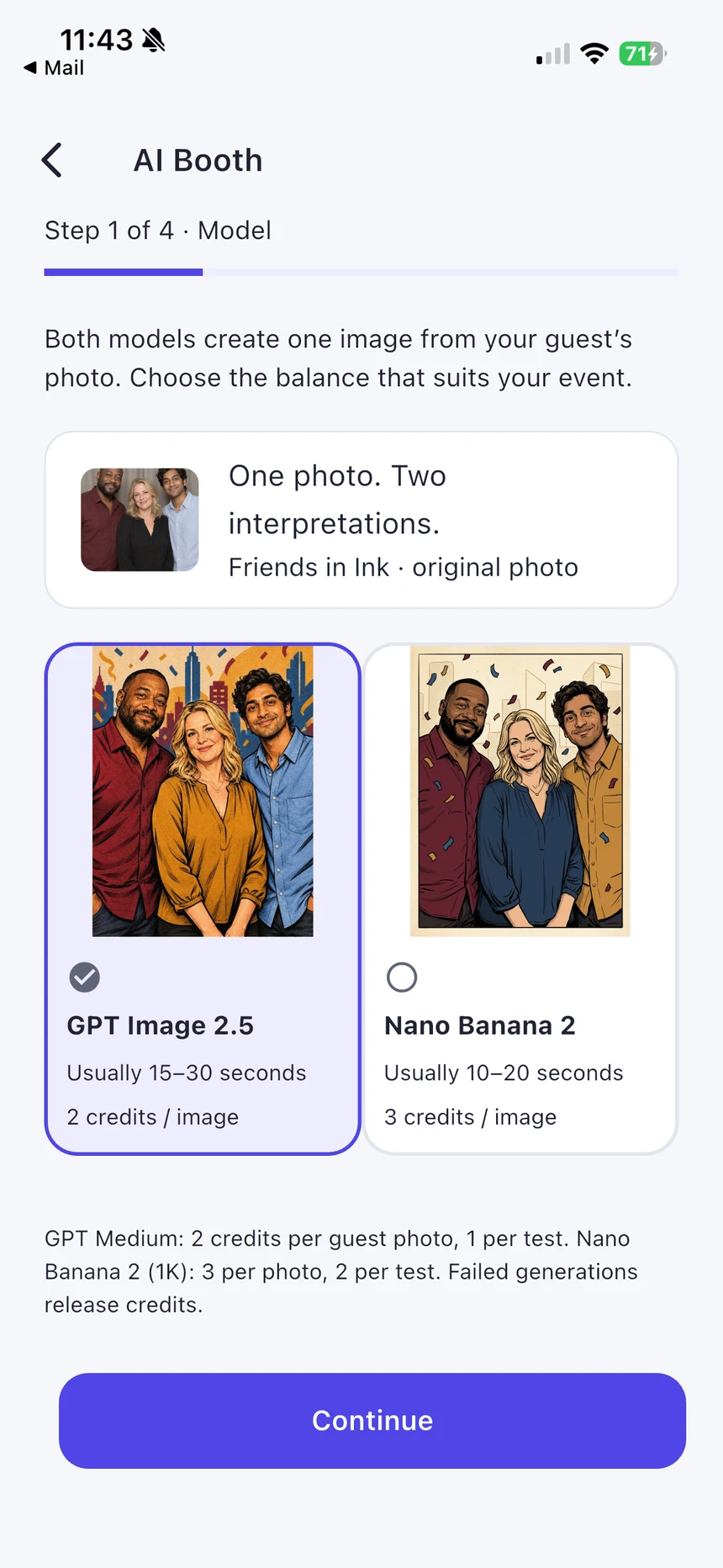
Choose the model
Open AI Booth in event setup. Compare the model descriptions, example images and credit cost. Follow any event-access requirement shown before enabling it.
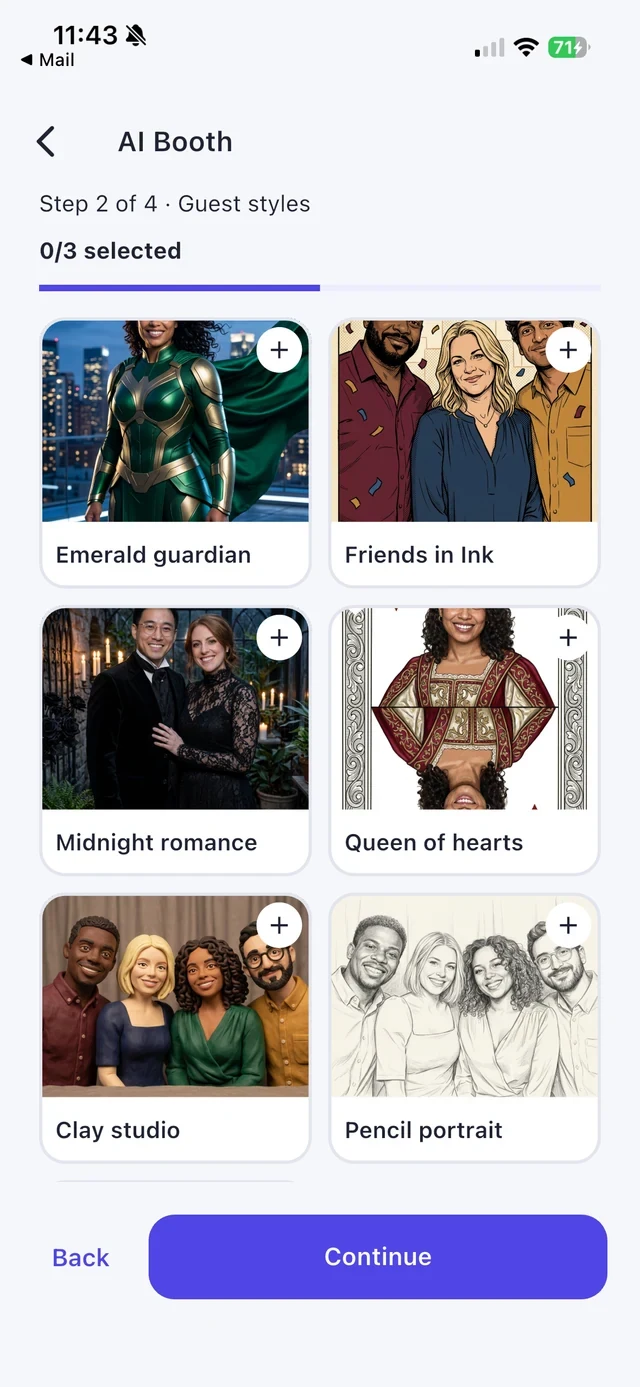
Select a small set of looks
Choose the guest styles you want to offer. Use built-in looks or your successfully tested saved custom prompts. A few distinct choices are easier for guests than a long list of similar styles.
Check orientation and budget
Complete the event orientation or photo design. Check the AI credit balance and any event limits. Plan for how many guests may want an AI result; ordinary captures and AI generations have different limits.
Rehearse the guest decision
Guests choose a look and take a photo, then can Retake, Use this photo or Cancel. Make sure they know an AI transformation starts after they confirm, not just when they take the original.
Leave time for processing
Keep the internet connection available. If a job is already submitted, use the app’s status and recovery path rather than repeatedly starting it again. Review the original and result together in the event when available.
Real app screens with numbered highlights. Tap Enlarge to inspect a screen. Example content; labels can vary by app version.
Helpful to know.
Have a non-AI option
Offer an ordinary capture type as well so guests can still make a memory if they do not want AI or a cloud service is unavailable.